


GLITCH BORG: PC Optimizer
This GLITCH BORG software is designed to optimize your PC. The software has various functions grouped into sections that you can run one by one. For the best result, it's recommended to run each task individually. Here are the details of each section.
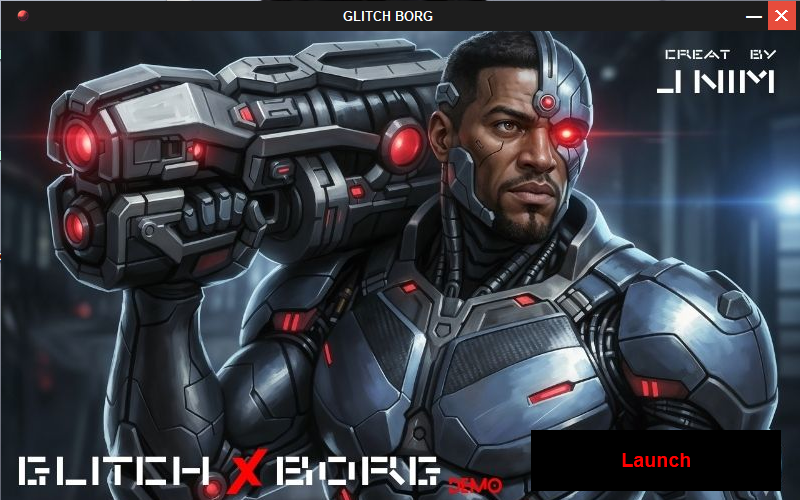
Important Note: Run as Administrator
For optimal performance and to ensure all features function correctly, you must run this application as an administrator.
To do this, after downloading the .exe file, simply right-click on the file and select "Run as administrator." When prompted by User Account Control (UAC), click "Yes" to allow the application to make changes to your device.
Follow These Instructions for Optimal Performance
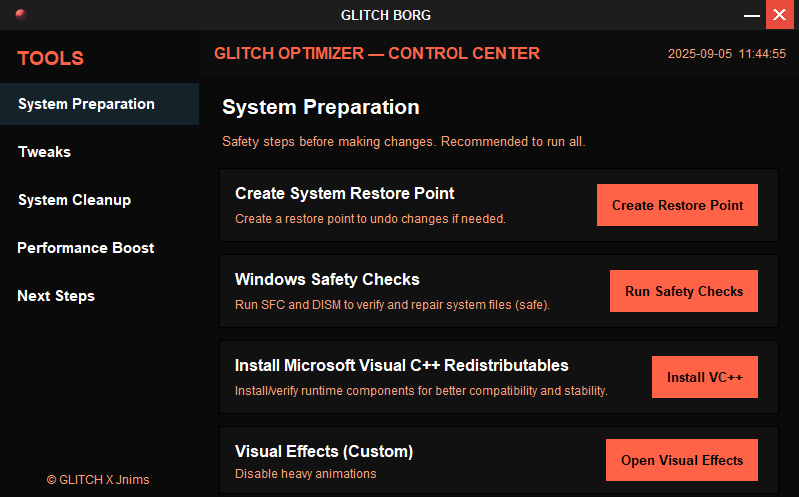
1. System Preparation
This section is designed to ensure your PC's safety. Before performing any optimization, it's recommended to run these tasks.
- Create System Restore Point: If any issue arises, this feature helps you revert the PC to its previous good condition.
- Run Windows Safety Check: This feature checks if all the basic system files on your PC are correctly in place.
- Install Visual C++ Redistributables: This helps install the libraries needed to run applications like games.
- Remove Virtual Effects: This feature helps improve PC speed by removing your PC's visual effects.
2. Tweaks
This section helps boost advanced performance. Select and run these options carefully.
- CPU Tweak: This helps increase your CPU's performance.
- Memory Tweak: This helps improve PC speed by optimizing RAM usage.
- Services Tweak: You can use this option to remove unnecessary services and improve PC performance.
- Network Tweak: This helps optimize your internet connection speed.
3. System Cleanup
This section helps you remove all the unnecessary files on your PC. It's recommended to run these tasks regularly.
- Clean Temporary Files: Remove all temporary files in Windows.
- Clean Registry: Clean the unnecessary registry entries on the PC.
- Clean Browser Cache: Remove the cache files in your web browsers.
- Clean Junk Files: This feature helps increase your disk space.
4. Performance Boost
This section helps improve your PC's overall performance.
- One-Click Full Optimization: This task automatically runs all common optimization tasks.
- Enable Power Boost: This task helps create and activate a custom power plan. It switches your PC to a high-performance mode.
Note: Instead of running the One-Click Full Optimization, performing the tasks you want one by one helps you optimize your PC in a customized way. This approach also gives you more control over what you are doing.